
One platform. Two worlds.
A bot for your Discord server, one for your Twitch channel — each with its own dashboard.
Solyx for Discord
Your server,
sorted.
Moderation, support and community features for your server — all set up in the dashboard.
- Moderation
- Discord AutoMod, cases and logs in one place.
- Tickets
- Panels, team claiming and transcripts.
- Social alerts
- Streams and videos from Twitch, YouTube and TikTok.
- Community
- Leveling, economy, mini games and server backups.
Solyx for Twitch
Your chat,
handled.
Commands, moderation and stream extras for your channel — no commands to memorize.
- Commands & timers
- Custom commands, recurring messages, chat alerts.
- Moderation
- Spam filters, blocked terms, nukes and a mod log.
- Giveaways
- By keyword or active chatters, subs get bonus odds.
- Overlays & games
- Stream overlays, Fortnite cups and Valorant stats.
See Solyx in action
Real views from both dashboards.
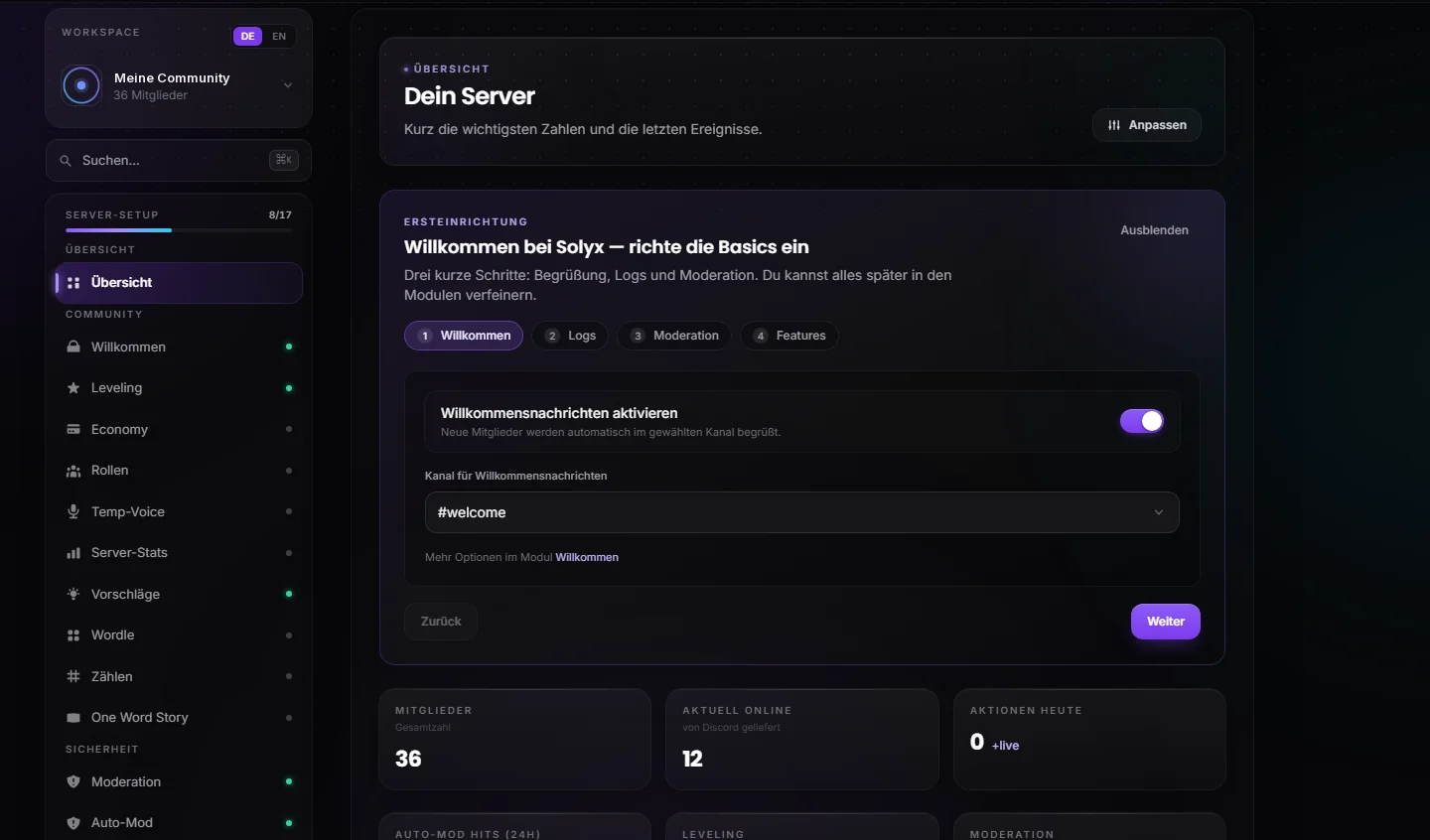
Every module has its own page — set everything up here, no commands needed.
Up and running in three steps
The same for both bots: log in, add the bot, set it up.
01
Log in
- Sign in to the dashboard with your Discord account.
- Sign in to the dashboard with your Twitch account.
02
Add the bot
- Pick your server and invite the bot.
- Click “Add bot”, then type in your chat:
/mod solyxbot
03
Set it up
- Turn on modules like moderation, tickets or leveling.
- Create commands, timers, spam filters and overlays.
What’s behind Solyx
- Two bots, one team
- Both bots are built and run together — same infrastructure, same standards.
- Dashboards, not command lists
- Everything is set up in the browser — in English or German, no commands to memorize.
- Direct support
- Questions, ideas and bug reports reach the developers on our Discord server.
Frequently asked questions
Is Solyx free?
Yes. Both bots and both dashboards are free to use — there is no subscription and no paid features.
What permissions does the Discord bot need?
The invite asks for administrator rights so every module works right away. You can also give the bot individual permissions, such as “Manage Messages” for moderation or “Manage Roles” for level roles — then only the modules its permissions cover will work. It can only assign roles that sit below its own role.
What does the Twitch bot need?
When you log in with Twitch, you allow Solyx to read subscriptions, polls and predictions for your channel and to change its title and category (for !title and !game), among other things. Type /mod solyxbot to make the bot a moderator — without that, it can only write slowly and can’t delete messages.
Can I move over from Fossabot?
Yes. In the Twitch dashboard, Solyx fetches your Fossabot commands automatically. Timers and blocked terms come over by copy and paste.
What data does Solyx store?
Only what the features need — for example settings, level progress or moderation logs.
Where can I get help?
On our Discord server. You reach the developers directly there — for ideas and bug reports too.
Status
Checked live and refreshed every minute.
Checking …
Discord bot
Checking …
Twitch bot
Checking …